
AI automation sounds bigger than it is. For most small businesses, it simply means letting software handle the repetitive first draft of routine work, such as sorting email, summarizing meetings, or logging new leads, while a person stays in charge of decisions.
This guide explains how a practical AI workflow is put together, which five tasks are good first candidates, what you need to get started, what it costs, and how to test a workflow before you trust it.
What "AI automation" actually means
A traditional automation follows fixed rules: when a form is submitted, add a row to a spreadsheet. An AI automation adds one step that can read and write language: when a form is submitted, summarize the request, decide which service it's about, then add a row.
That language step is useful for messy, unstructured input like emails, notes, and customer questions. It is not a replacement for judgment, and it is not a calculator.
The 5-part workflow pattern
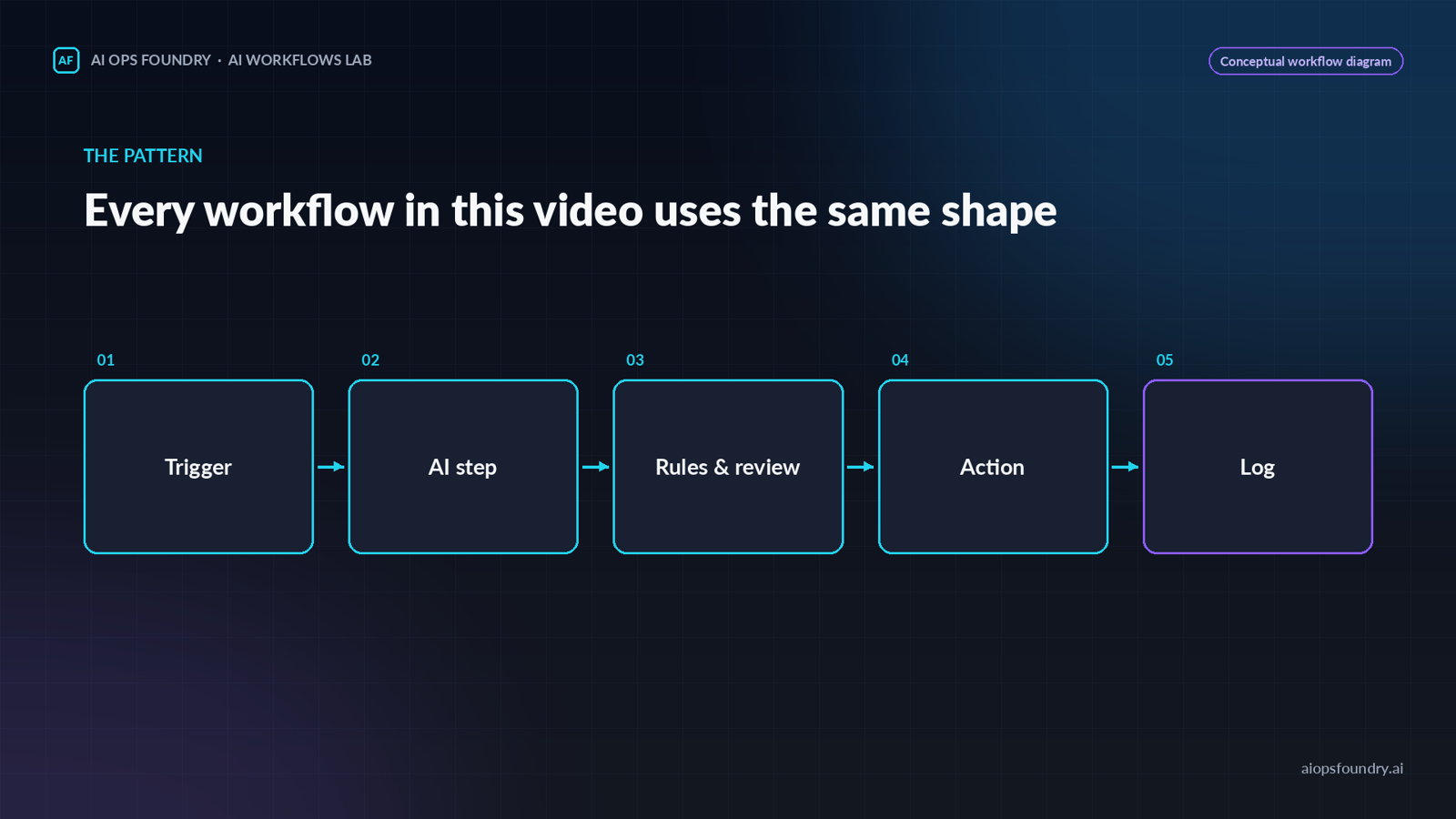
Almost every useful AI workflow follows the same shape:
- Trigger. Something happens: a new email arrives, a form is submitted, or a scheduled time is reached.
- AI step. A language model classifies, summarizes, extracts, or drafts.
- Rules and review. Your written business rules decide what is safe to do automatically and what waits for a person.
- Action. The workflow applies a label, creates a task, adds a row, or saves a draft.
- Log. Every run is recorded so you can check what happened.
If you remember one design rule, make it this: for your first workflows, the AI drafts and a person sends.
Five tasks worth automating first
1. Email sorting and reply drafts
A new email triggers the workflow. The AI classifies it as sales, support, billing, or other, the workflow applies a matching label, and for common categories it saves a draft reply. You review and send.
- Keep an "other" category so unusual messages land somewhere safe.
- Never let the workflow send pricing, refund, or legal answers on its own.
- Check your AI provider's data-handling policy before sending customer or financial information.
2. Meeting notes to action items
When a transcript or notes document is saved to a specific folder, the AI extracts a structured list of tasks, each with an owner and a due date if one was mentioned. Items without a clear owner are flagged instead of guessed. The workflow creates tasks in your project tool and sends a summary.
Ask for a fixed output format (a table or JSON) so the next step can read it reliably.
3. Weekly business reporting
A scheduled trigger pulls the latest numbers from your spreadsheet. Formulas calculate the changes; only then does the AI write a short plain-English summary. The report is emailed to you.
Language models can make arithmetic mistakes, so keep the math in the spreadsheet.
4. Customer FAQ answers
The AI answers common questions only from your approved FAQ or help documents. If the answer isn't in the documents, it says so and routes the question to a person. Logging every question also shows you which FAQ entries are missing.
5. Lead intake and follow-up
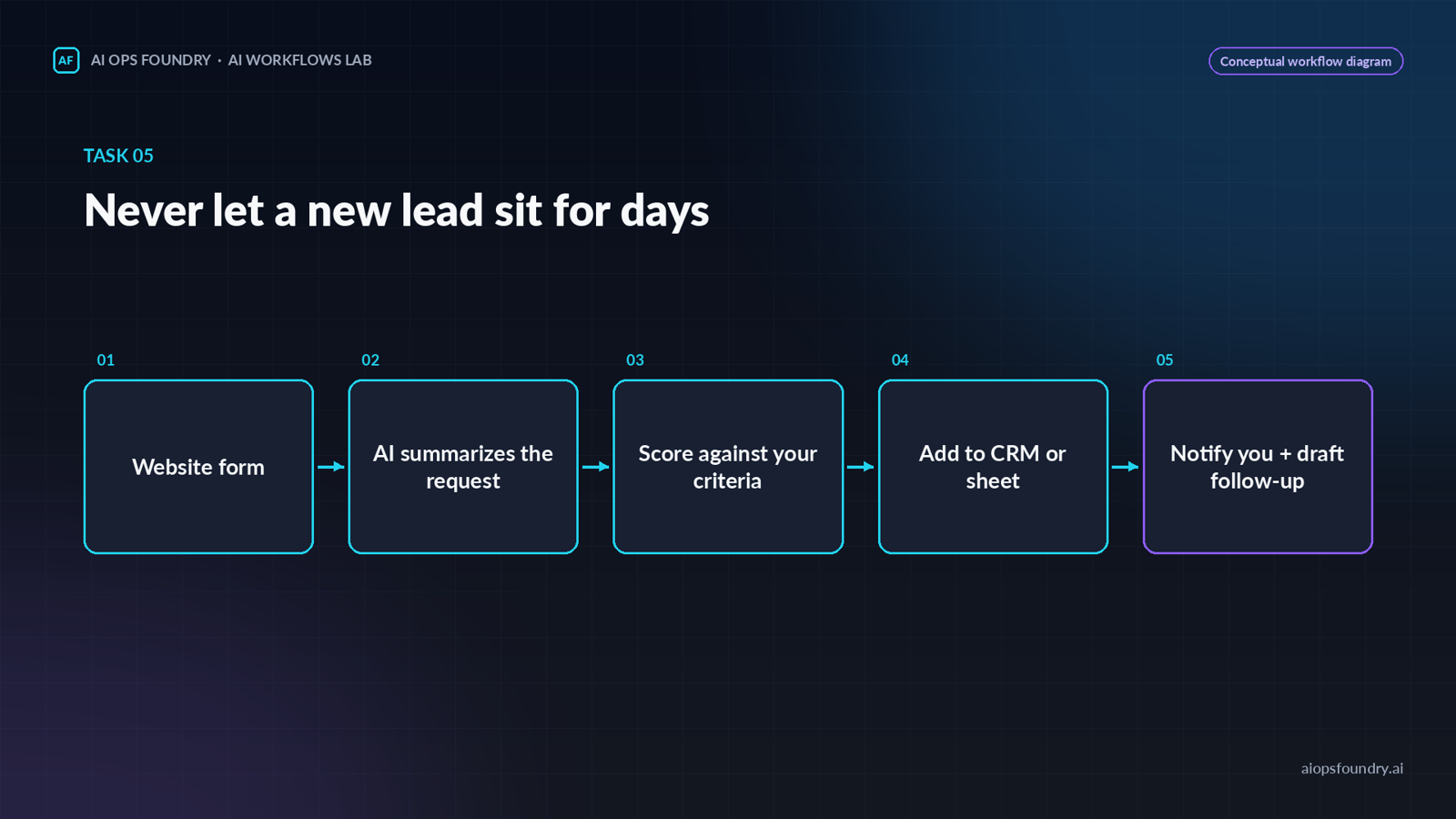
A website form submission triggers the workflow. The AI summarizes the request and checks it against criteria you define (service type, location, budget range). The lead is added to your CRM or a spreadsheet, and you receive a notification with a drafted follow-up to review.
What you need before you start
| Requirement | Examples | Notes |
|---|---|---|
| Automation platform | Make, Zapier, n8n | No-code visual builders; n8n can also be self-hosted |
| AI model access | API key from a provider such as OpenAI or Anthropic | Billed per use; set a monthly spending limit |
| Your existing apps | Email, spreadsheet, form tool | Often enough for a first workflow |
| Written rules | A short document | If you can't explain a rule to a new employee, the automation can't follow it |
Step-by-step: plan your first workflow
- Pick one task you do at least weekly. Frequency matters more than complexity.
- Write the rules down. List the categories, the decisions, and what should happen when something is unclear.
- Map it to the 5-part pattern. Name the trigger, the AI step, the review rule, the action, and where the log lives.
- Build it in draft-only mode. The workflow prepares work; a person approves it.
- Test with 10–20 real past examples (see below).
- Run it for two weeks with review. Track every miss.
- Expand gradually. Only allow automatic actions for categories that have been consistently correct.
The free AI Automation Starter Kit includes a one-page planner for steps 1–3.
How to test an AI workflow
- Collect 10–20 real examples from the past few weeks.
- Run each one through the workflow.
- Compare the output to what you would have done.
- Record every miss in a simple log: input, expected result, actual result.
- Improve the instructions (add examples, tighten the format), then rerun the same examples.
If results aren't consistent on past examples, they won't be consistent on new ones.
Troubleshooting
| Problem | Likely cause | Fix |
|---|---|---|
| Output format changes between runs | Instructions too open-ended | Specify an exact format and include an example |
| Items land in the wrong category | Categories are vague | Add 2–3 real examples per category to the instructions |
| Workflow stops running | A step failed (expired login, changed field) | Open the platform's run history; it usually shows the failing step |
| Costs creep up | Workflow runs too often or uses AI where it isn't needed | Reduce run frequency; replace AI steps with simple rules where possible |
Costs and limitations
You can start many of these workflows at little or no cost. For example, Make's Free plan includes 1,000 credits per month, and each module action uses one credit (Make pricing, checked October 2026). A five-step workflow that runs 50 times a month uses about 250 credits.
What usually costs money:
- AI model usage, billed per use by the provider.
- A paid automation plan once volume or the number of active workflows grows.
- Seats in tools like a CRM or helpdesk.
Limitations to keep in mind: AI output can be wrong or inconsistent, sensitive data needs care, and every workflow needs occasional maintenance when connected apps change.
Pricing changes often. Check current plans before you build.
Watch the video
Related tutorials
- Build Your First AI Workflow Without Coding (video, Wednesday)
- Coming next week: AI Email and Administrative Automation Guide
Disclosure: AI Ops Foundry has no affiliate relationships with any product mentioned in this article.